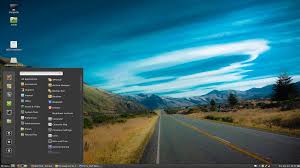
Linux Mint 17.3 Desktop
.
Scratching Your Head Trying to Get an Old PC with a Broadcom Adapter Onto Wi-Fi Using Linux? — Join the Crowd
Old PCs, in particular Dell PCs and laptops vintage 2000’s, oftentimes shipped with Broadcom network adapters. There were a variety of Broadcom BCM43xx adapter models. If you happen to have an old PC with one of these ancient network adapters, it can be quite a challenge to get the PC using Linux to connect to a Wi-Fi network.
These procedures are written for Linux Mint, but can be applied to other Linux distros, including Ubuntu. Follow the steps below and watch magic happen.
.
 Broadcom Corporation was an American semiconductor company in the wireless and broadband communication business. It was acquired by Avago Technologies in 2016 and currently operates as a wholly owned subsidiary of the merged entity called Broadcom Limited.
Equipment Used for These Procedures
- Dell XPS M1530 laptop
- Broadcom BCM4312 network adapter
- Linux Mint 17.3
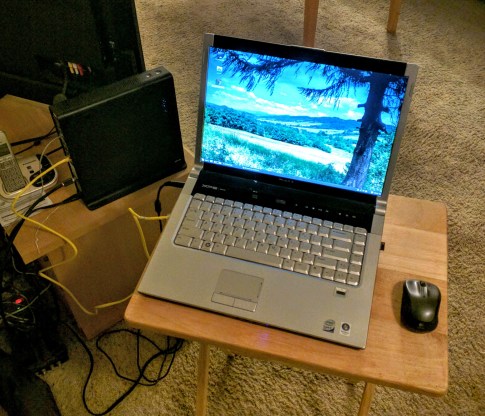
Dell XPS M1530 Laptop with Ethernet Connection to Wi-Fi Modem/Router
.
Steps to Connect a Broadcom Network Adapter to a Wi-Fi Network
A. Connect Your PC to the Internet via Ethernet Cable
Since your PC presently has no access to your WiFi network, you’ll need to connect your PC directly to your Wi-Fi modem/router using an ethernet cable.
B. Verify the Broadcom Network Adapter on Your PC
- Open a Terminal window.
- Type this command: lspci -vnn
- Look at the last section of the stuff output to the screen, it should look something like this:
.
Network controller [0280]: Broadcom Corporation BCM4312 802.11b/g LP-PHY [14e4:4315] (rev 01)
.
In this case, the Broadcom BCM4312 network controller (adapter) is installed on the PC.
C. Install B43-Fwcutter
43-fwcutter is a utility for extracting Broadcom BCM43xx firmware. It’s used by the firmware-b43(legacy)-installer packages as part of the automated process of downloading and installing firmware.
Use Synaptic Package Manager
- Select b43-fwcutter.
- Mark it for installation.
- Select Install.
D. Install Broadcom-STA Driver
- Download required firmware files:
.
http://downloads.openwrt.org/sources/wl … 130.20.0.o
http://mirror2.openwrt.org/sources/broa … .5.tar.bz2
. - Copy the downloaded files to your Home Folder.
- Open a Terminal window to extract and install the files. Become Super User by typing su — then enter your Admin password.
- Copy the following 3 commands, paste them into the Terminal window, then hit Enter to execute them.
.
tar xfvj broadcom-wl-4.150.10.5.tar.bz2
sudo b43-fwcutter -w /lib/firmware wl_apsta-3.130.20.0.o
sudo b43-fwcutter – -unsupported -w /lib/firmware broadcom-wl-4.150.10.5/driver/wl_apsta_mimo.o
. - Check for available Wireless Networks.Click on Wi-Fi panel icon, lower right hand of screen — you should see the Wi-Fi Network List without needing to reboot, select your network, enter your password, then connect. If the Wi-Fi Network List isn’t available, reboot.
- After your PC boots up, click on the Wi-Fi List, select your network & enter your password, then connect (skip this if you were able to connect in Step 5).
- Now, every time you boot your PC, it will automatically connect to your WiFi network.
.





 Gary Reiner
 Comfortably Numm
Discussion
No comments yet.